Delta Force Best PC Settings for FPS & Visibility
Competitive PC graphics settings for Delta Force. Maximize frame rate, eliminate foliage clutter, and optimize Unreal Engine 5 visibility.
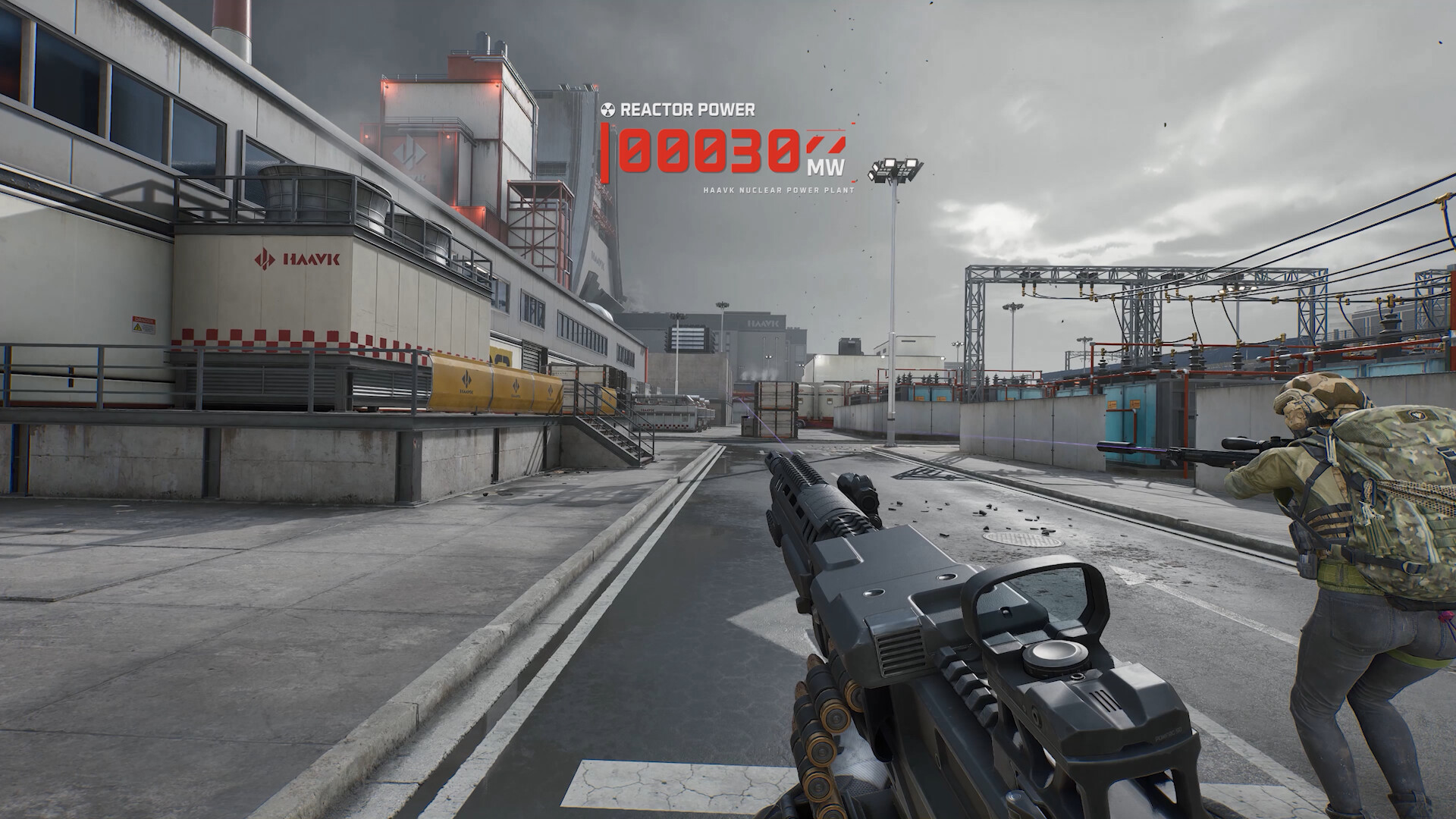
To maximize FPS and competitive enemy spotting in Delta Force, set Display Mode to Fullscreen, Foliage Quality to Low, Shadows to Medium, Screen Space Reflections to Off, Motion Blur to Off, and enable NVIDIA Reflex Low Latency on 'On + Boost'. Use DLSS on Quality mode with 65% sharpness for clear distance silhouette recognition.
Competitive first-person shooters running on modern rendering engines demand deliberate configuration. Delta Force operates on Unreal Engine 5, combining high-fidelity dynamic global illumination with vast outdoor landscapes across Zero Dam, Layali Grove, and Space City.
While the default cinematic presets render stunning environmental textures, they inject severe visual clutter, heavy motion smearing, and unnecessary shader overhead that penalize target acquisition. This guide provides exact, benchmarked competitive video configurations tuned specifically for high refresh rate monitors (144Hz to 360Hz) to maximize framerate stability and visual clarity.
Recommended Video Settings Matrix
Apply the following display and graphics settings inside the in-game options menu:
| Graphics Setting | Recommended Competitive Value | Competitive Impact & Rationale |
|---|---|---|
| Display Mode | Exclusive Fullscreen | Bypasses Windows Desktop Window Manager (DWM) for lowest input latency |
| Resolution | Native Monitor Display (1080p / 1440p) | Avoid downscaling below native to preserve distant pixel grid sharpness |
| V-Sync | Off | Eliminates buffer wait states and mouse drag |
| Framerate Limit | Custom (Monitor Hz + 3 FPS cap) | Prevents GPU hitting 99% usage ceiling where latency spikes occur |
| NVIDIA Reflex | On + Boost | Forces GPU clock speeds to stay elevated during intense firefights |
| Field of View (FOV) | 100° to 103° (Horizontal) | Matches standard tactical shooter sightlines without extreme target shrinkage |
| Anti-Aliasing | DLSS / TSR Quality | Cleans sub-pixel aliasing on fences and wires with minimal blur |
| Texture Quality | High | Keeps player skin camouflage distinguishable without hurting GPU frametime |
| Shadow Quality | Medium | Low removes self-shadows; Medium keeps depth contrast in indoor hallways |
| Foliage Quality | Low | Reduces excessive grass density to expose prone enemies at range |
| Effects Quality | Low | Reduces particle density from explosions that obscure your crosshair |
| Post-Processing | Low | Removes lens flare, bloom haze, and cinematic contrast grading |
| Motion Blur | Off | Eliminates camera rotation smearing during fast corner sweeps |
| Depth of Field | Off | Keeps peripheral surroundings sharp during weapon Aim-Down-Sights |
| Volumetric Fog | Low | Removes atmospheric haze that washes out distant sniper towers |
| Screen Space Reflections | Off | Eliminates noisy surface shimmer on wet asphalt and metal floors |
Deep Dive: Foliage and Clutter Reduction
In Hazard Operations, surviving extraction requires detecting stationary squads holding defilade positions. When Foliage Quality is set to High or Ultra, the engine draws high-density alpha-blended grass blades up to 75 meters away.
By dropping Foliage Quality to Low, the engine truncates the grass render distance to approximately 25 meters and reduces blade tessellation. Distant enemies lying prone in open fields lose their concealment, standing out sharply against the flat ground geometry. This single setting adjustment directly enhances your kill conversion rate across long-range engagements.
Upscaling and Anti-Aliasing Trade-Offs
Unreal Engine 5 titles feature Temporal Super Resolution (TSR) alongside hardware solutions like NVIDIA DLSS and AMD FSR.
1. NVIDIA DLSS (Recommended for RTX GPUs)
Set DLSS to Quality Mode with Sharpness set to 55% - 65%. DLSS reconstructs fine geometric edges, such as telephone wires, crane ladders, and chain-link fences, significantly better than standard Temporal Anti-Aliasing (TAA) without the characteristic ghosting trails.
2. AMD FSR / TSR (For Non-RTX Cards)
If using AMD Radeon or older GTX graphics cards, select TSR Native or FSR Quality. Avoid FSR Performance mode at 1080p, as the internal 540p render resolution results in severe reticle shimmer during rapid target switching.
Frame Pacing and Input Latency Optimization
Achieving high average framerates is insufficient if your 1% low frame dips cause stutter during rapid mouse flicks.
- Keep GPU Utilization Below 97%: When your graphics card hits 99% to 100% saturation, the internal render queue fills up, introducing up to 15 milliseconds of added mouse delay. Capping your framerate slightly below your average sustained rate keeps the pipeline responsive.
- Disable Ambient Occlusion: Screen-space ambient occlusion darkens interior corners. In tactical CQB situations inside Zero Dam administration complexes, dark corners allow dark operator uniforms to blend into walls. Setting Ambient Occlusion to Low or Off flattens the lighting gradient, making enemy models pop.
- Brightness Calibration: Increase the in-game display brightness slider by +5% to +10% above the recommended calibration image. This brightens shadowy stairwells without overexposing outdoor sunlit areas.
Step-by-Step Settings Application Checklist
Follow these exact steps before entering ranked or Hazard Operations matches:
- Launch Delta Force and open Settings from the main lobby.
- Navigate to Video -> Basic Display. Confirm your monitor native refresh rate is active and set Display Mode to Fullscreen.
- Move to Advanced Graphics. Set the master preset to Custom.
- Manually verify that Motion Blur, Depth of Field, and Chromatic Aberration are completely disabled.
- Set Foliage, Effects, and Volumetric Fog to Low.
- Verify your VRAM usage bar in the bottom right corner remains below 70% of total dedicated memory.
- Click Apply Changes and restart your game client once to purge old texture caches from system RAM.
Frequently Asked Questions
Why should Foliage Quality be set to Low in Delta Force?
Lowering Foliage Quality thins out non-essential ground grass meshes and bush clutter beyond 30 meters, preventing enemy prone operators from hiding invisibly in open desert terrain.
Does DLSS introduce input lag in Delta Force?
No. DLSS Super Resolution (Quality mode) reduces internal GPU render load, which lowers GPU frame buffer queuing and reduces end-to-end system latency when paired with NVIDIA Reflex.
What Field of View (FOV) provides the best target clarity?
We recommend a horizontal FOV between 95 and 103 degrees. Setting FOV above 110 causes a fish-eye effect that shrinks distant player head hitboxes to fewer screen pixels.